User guide · CDSlides 0.1.7
Your first service
Make a service
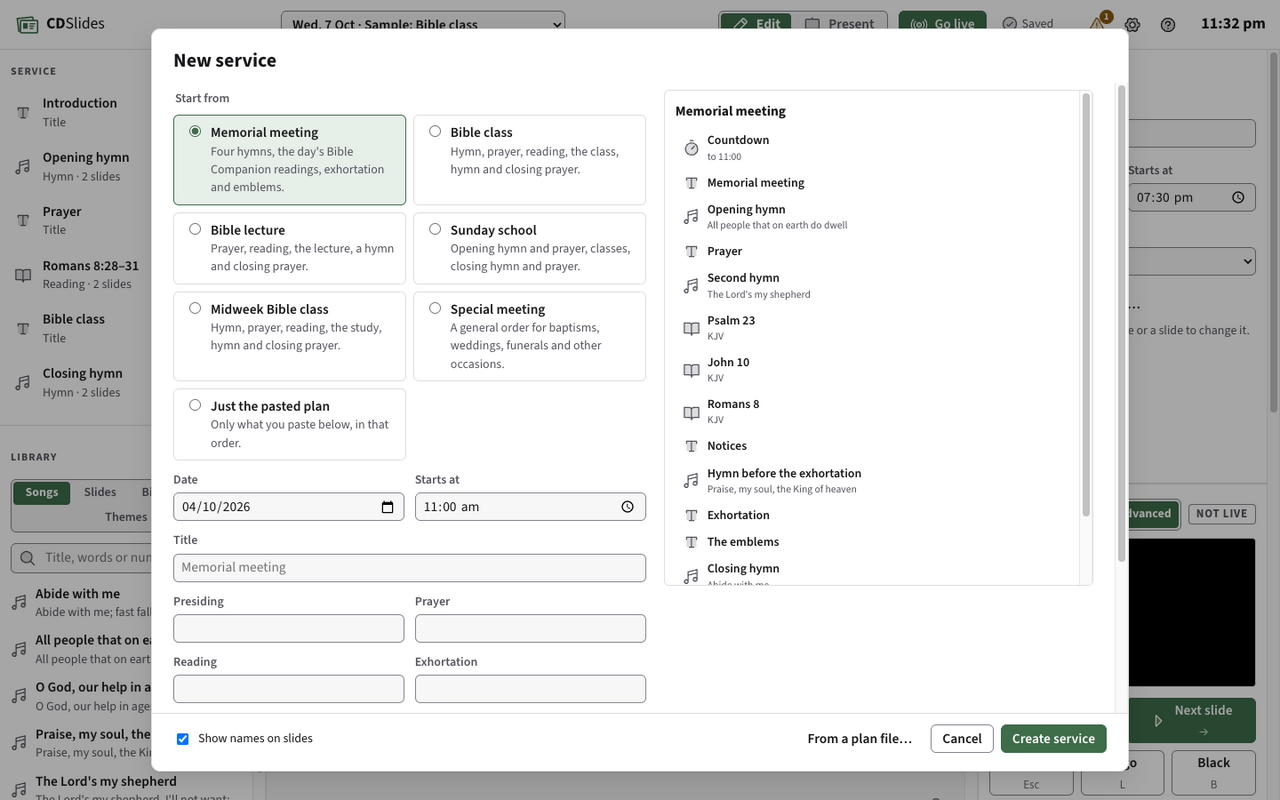
- In the top bar, open the service menu and choose New service….
- Choose the kind of meeting (Memorial meeting, Bible class, and so on), the date and the time. Start from picks a service template: the usual order for that meeting, with places for hymns and the day's readings.
- Choose Open the service.
The service's items appear on the left, in order. Items still to be chosen (such as Opening hymn: choose a hymn) are marked; the Before the service check lists them too.
Add the hymns
- Choose a hymn's place in the service and pick the hymn, or
- search the library (type a title, words or a number such as 247) and drag the song into the service.
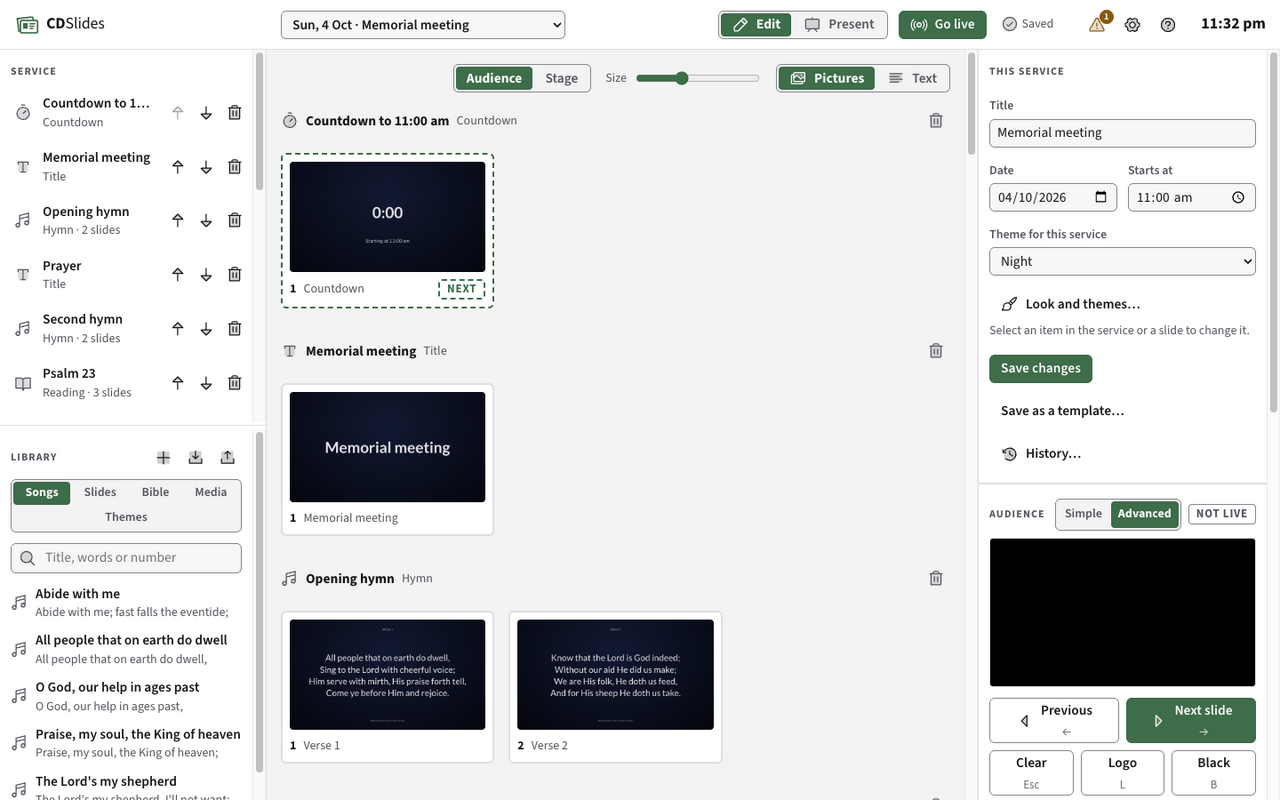
A hymn shows one verse, or part of a verse, per slide. To show only some verses, or a different order, choose the hymn in the service and pick the verses in its settings.
Add a reading
In the library, open Bible and type the reference, for example rom 8 28-39. Choose the translation, then add it to the service. The day's Bible Companion readings are offered too: Add all three readings adds them.
Add notices or other slides
Open Slides in the library: make a new set of slides, or import a PowerPoint or PDF file. See Slides, pictures and videos.
Fill it in from one form
In Edit, choose Plan above the slides (beside Pictures and Text). Every item in the service is listed in order, as CDRoster's service plan shows a meeting:
- Hymns: choose the book and type the number; the hymn's title shows once it's saved.
- Readings: type the passage, e.g. rom 8 28-39.
- Heading slides: the topic (for the exhortation or the meeting's own slide) and who's on it, names separated by commas.
Choose Save to fill in everything at once. If a hymn isn't in the library, CDSlides says which and saves nothing. As with every edit, the screen changes only when you choose Update live. Items from a planner that you change here are kept as you set them: if the planner changes them later, CDSlides asks before replacing yours.
A service details slide
A black slide with the service's details, to show between items: the topic in italics, its reading, and the music, each hymn by its book and number (RSB 90, Hymn 94), with (Med) beside a meditation hymn.
- Type details in the Add box (where you type H 247) to add one.
- To have every service built with one, add the Service details place to your order of service (Settings → Service templates).
It's worked out from the service each time it's shown, so it follows changes to the hymns and readings. To show something else, select it and change its heading or reading, or leave the music off.
Before the service
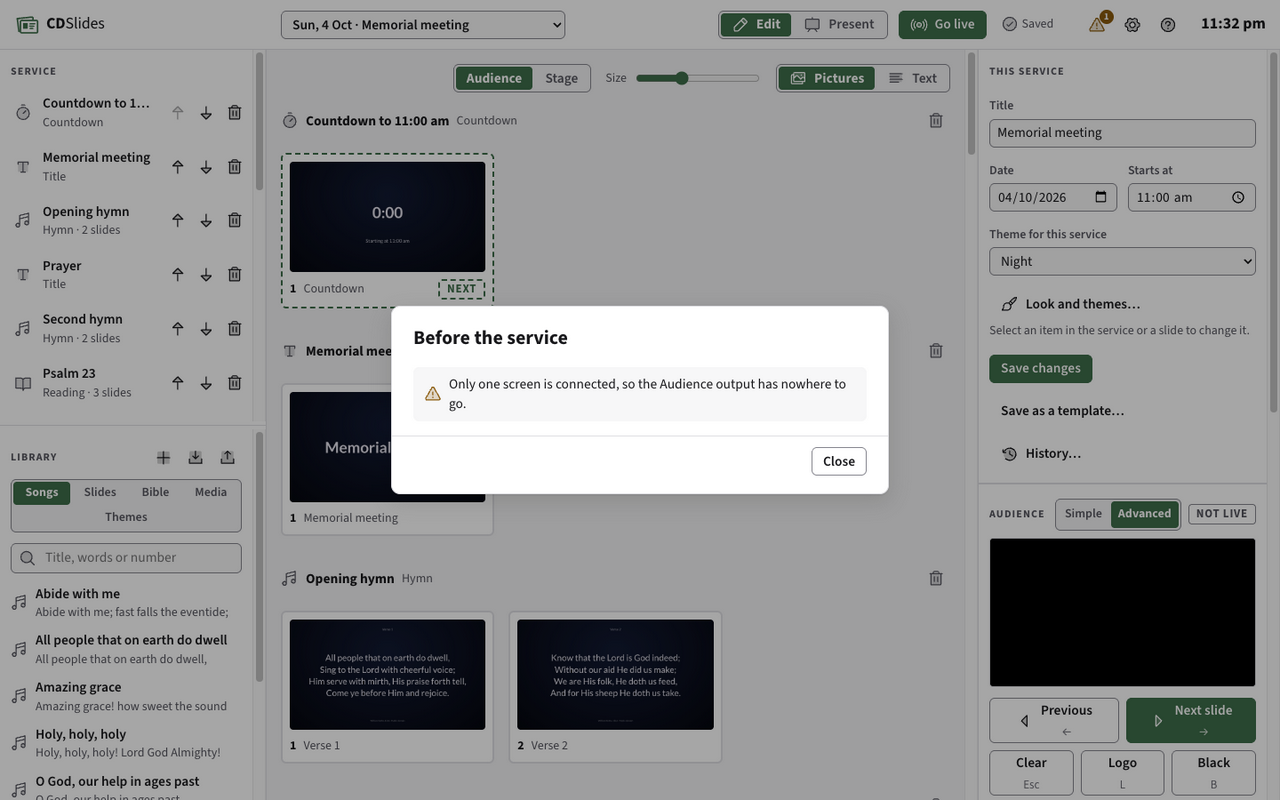
The Before the service button in the top bar turns amber or shows a number when something needs a look: a hymn not chosen, a song missing, a picture or video that isn't on this computer, a screen that isn't connected, or no sound output. Choose it to see the list; Show takes you to each item.
Run it
- Switch to Present in the top bar.
- Check the projector is chosen under Outputs on the right (see Screens and the livestream).
- Choose Go live: the first slide shows.
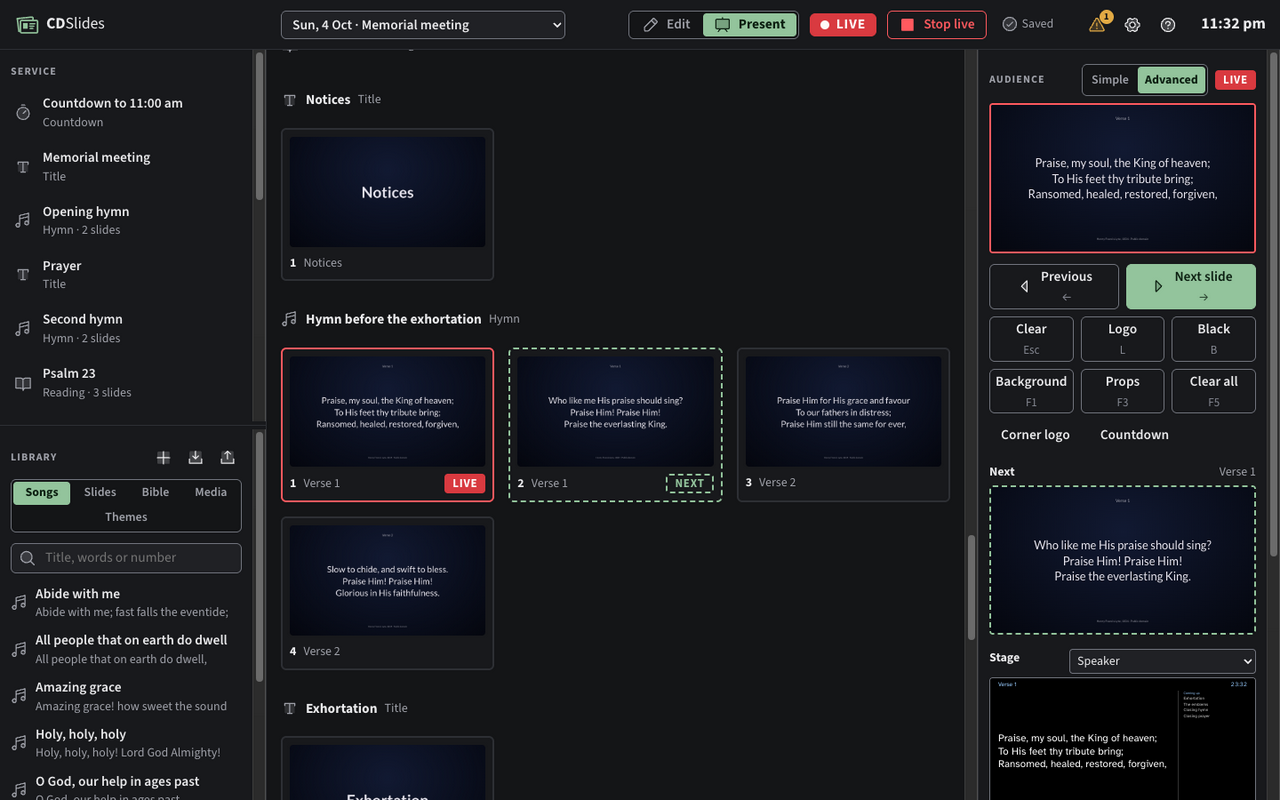
- Next slide (or the right arrow key, the space bar, or a clicker) moves on; Previous goes back. Choose any slide to show it.
During the meeting:
- Black blanks the screen (B on the keyboard); choose it again to bring the slide back.
- Logo shows your ecclesia's logo instead (L).
- Clear takes the slide off, leaving the background (Esc).
- Stop live clears the screen at the end.
Changing something during the meeting
You can edit while a slide is showing: correct a typo, change a verse. Nothing on the screen changes until you choose Update live (U). That way nobody sees half-finished edits.
Services from a planner (CDRoster)
If your ecclesia plans its meetings in CDRoster, an admin connects it on the cloud's page (Settings → Planner → Open the cloud's page, then Planning connections; the steps are in Signing in with CDRoster). Each planned meeting then arrives as a service by itself: its order, readings, names and hymns. Changes made in CDRoster follow; edits you make in CDSlides are kept, and you're asked only when CDRoster changes something you edited here.
The opening slide shows the meeting's title and topic with the name of whoever gives the talk (the speaker, lecturer or exhorter). Until there is one, it shows whoever is presiding.
Settings → Planner shows how CDRoster's names match your library:
- Songbooks: which of your songbooks each of CDRoster's books is, so hymn numbers find the right songs. CDSlides matches what it can (Purple Worship Book is your Worship 1 (Purple), for example). A number your book doesn't have with its letters (SB75) is looked up by its number (75), and the service says so. One it can't find at all is left as a place to choose the hymn, saying which number and book it looked for.
- Meeting types: which service template each kind of meeting starts from.
- Roles: who each role is on the slides, or leave it off.
Anything CDSlides can't match says choose one. Choosing updates the planner's services straight away.
Sending changes back to CDRoster
What you change in CDSlides stays in CDSlides until you choose to send it.
-
Make the change and Save it (in the Plan view, or anywhere else).
-
In Edit → Plan, choose Send to CDRoster….
-
CDSlides lists what you changed here since CDRoster's plan. For each, choose:
- Change the plan: corrects CDRoster's plan (a wrong hymn number, a reading, the topic, the notices, the order of items).
- This service only: CDRoster shows it beside the plan for this service, so the person presiding sees what your slides have (a hymn swapped on the day, someone else reading), without changing the plan.
- Keep here: stays in CDSlides only.
Names on slides (someone reading in another's place) can only be shown for this service: CDRoster's roster never changes from CDSlides. Removing an item starts on Keep here.
-
Choose Send. Cancel sends nothing.
How slides look, pictures and videos always stay in CDSlides. Notices go as the whole list, as they are here.
What CDRoster shows for this service is replaced each time you send it, and the window starts with what's there now, so nothing you showed before is lost by accident. To take it away, tick Stop showing the AV version in CDRoster (offered when nothing is chosen for this service).
When CDRoster's new version arrives (usually within a minute), what you sent to the plan simply follows it, and anything you didn't send stays as you set it.
- Who can send: someone signed in with CDRoster on this computer (sent as them, with their CDRoster permissions), or a computer registered as an editor or admin (sent by the computer's name), once an admin has allowed plan changes when connecting CDRoster. A CDSlides email or passkey sign-in on its own can't send, and neither can a viewer. The window says why when you can't.
- Both kinds at once: the plan correction goes first, then what's shown for this service. If the plan correction doesn't go through, the other isn't sent either; the window says which went.
- "Nothing was sent: the plan changed in CDRoster" means someone changed it there since you looked. The window lists what changed; choose Review again to send against CDRoster's current plan, or close it to keep your changes here only.
- If it can't send (offline, refused, or no answer), your changes stay here, untouched. Nothing is sent later by itself: choose Send to CDRoster… again when you're ready. If there was no answer, check the plan in CDRoster first: it may already have the change.
Past services, and copying one
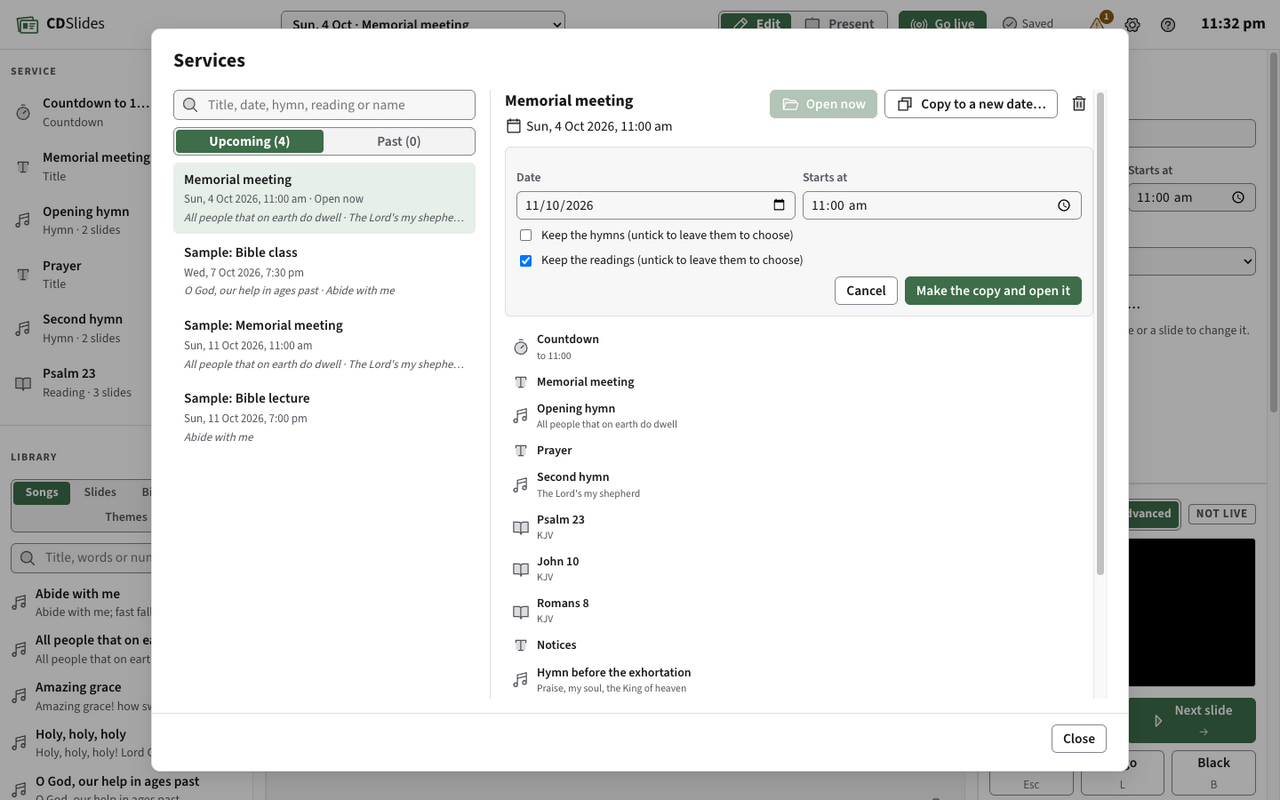
Every service is kept. Choose All services, past and upcoming… in the service list at the top to see them:
- Upcoming and Past lists. Search by title, date, hymn, reading or name (for example Romans 8, 247 or October).
- Choose a service to see its order. Nothing on the screens changes until you choose Open.
- Copy to a new date… makes a new service with the same order and look, for next week for example. Untick Keep the hymns or Keep the readings to leave those as places to choose. A copy isn't linked to a planner meeting.
- The bin deletes a service. It goes to Recently removed (Settings → Library) for a while, in case you need it back.
Next
Guides describe CDSlides 0.1.7. Source at f65a007e.