User guide · CDSlides 0.1.7
How slides look
Themes
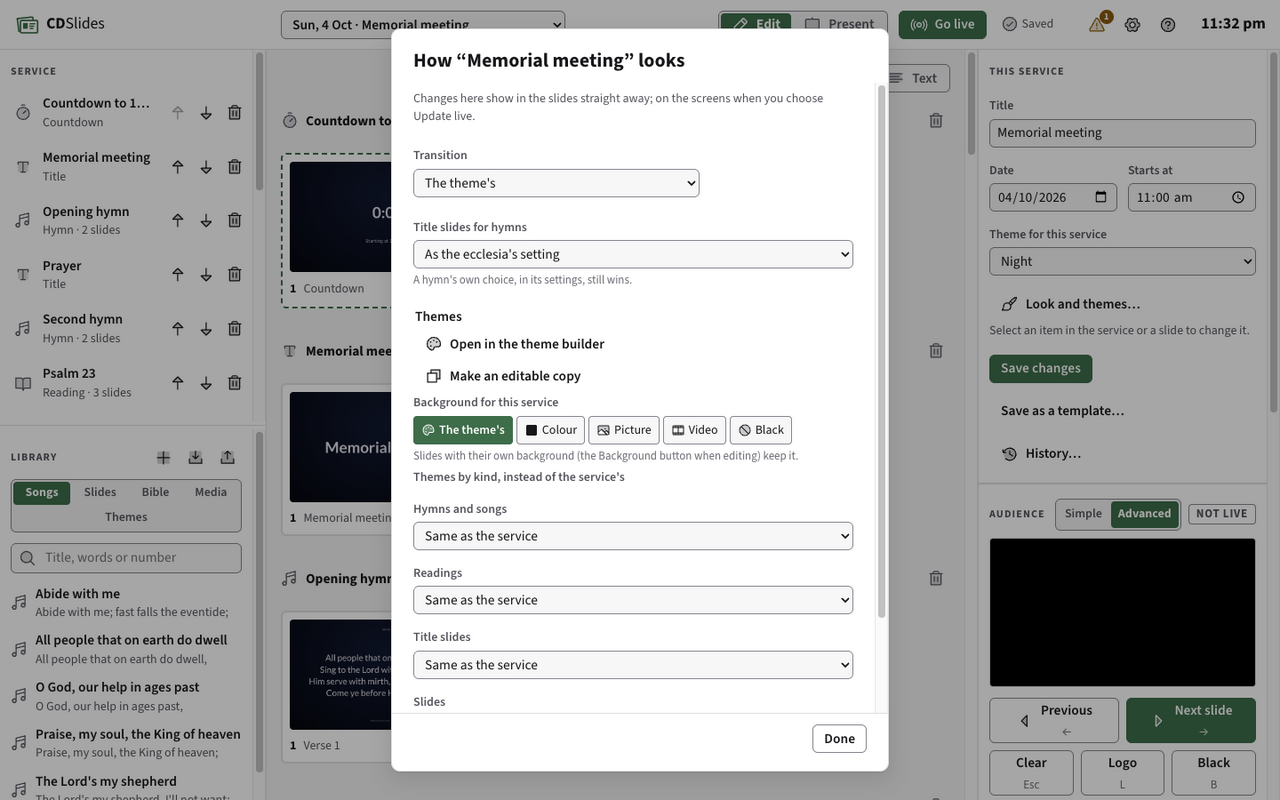
A theme sets how slides look: fonts, colours, background, where the words sit. CDSlides comes with a dozen (Classic Hymn, Modern Sans, Night, Parchment and more). Library → Themes lists them.
Set the theme:
- for everything, in the welcome or the theme list (your ecclesia's default);
- for one service, in the service's details (Edit mode, nothing chosen). Look and themes… there has the rest: a background and transition for the whole service, title slides for hymns, and a different theme for each kind of item (hymns, readings, title slides and so on);
- for one item, in its settings (for example a different look for notices).
Making your own
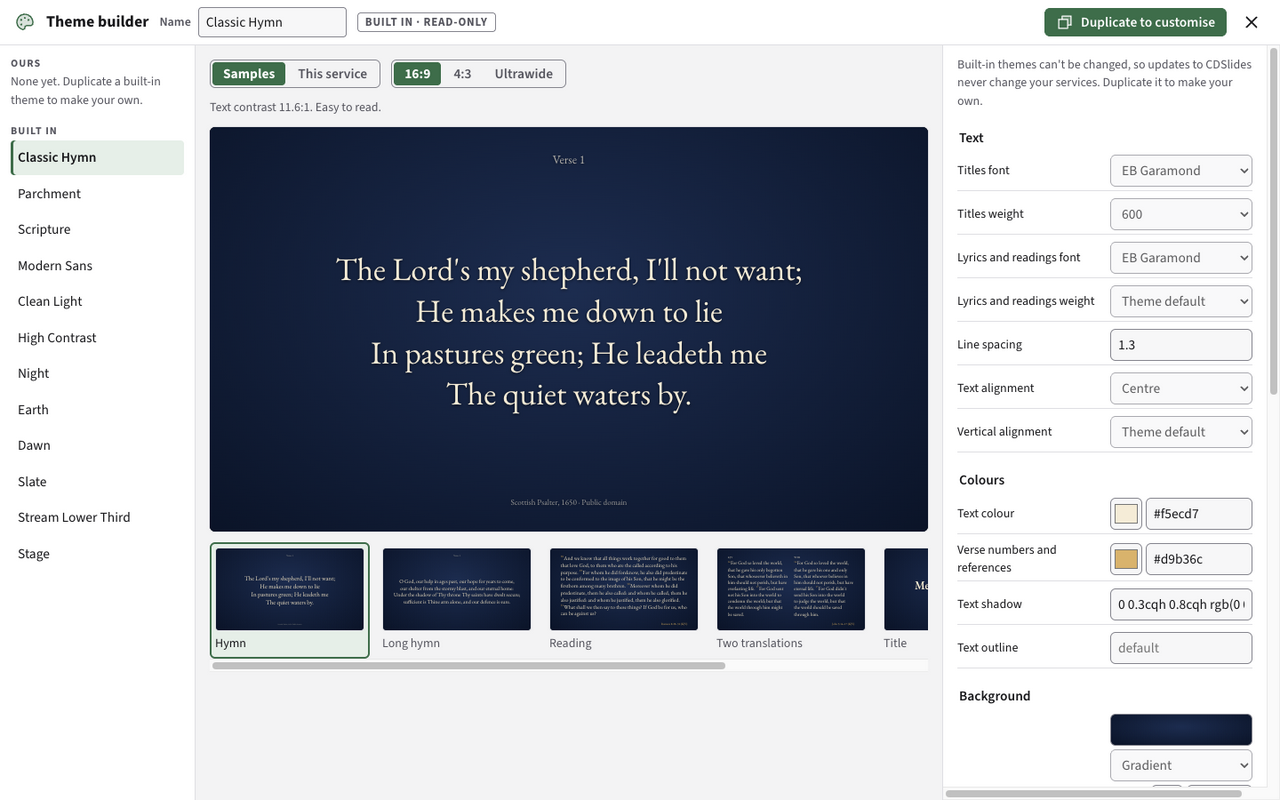
Built-in themes can't be changed, but any of them can be copied: open it (View) and choose Duplicate to customise. The theme builder shows the theme on sample slides (or this service's slides, with This service) and at different screen shapes (16:9, 4:3, ultrawide) while you change:
- Text: fonts and weights for titles and words, line spacing, alignment (left, centre, right) and vertical alignment (top, middle, bottom).
- Colours: text, verse numbers and references, shadow and outline. A warning appears if the text would be hard to read on the background.
- Background: one colour, a gradient between two colours (with a direction), a picture or a video.
- Layout: how much space to keep at the edges, and how many lines go on a slide before a verse is split.
- Transitions: how slides change (fade, cut, push, zoom) and how long it takes.
- Watermark: a picture (your logo, say) in a corner of every slide, its size and opacity, and a light or dark glow or plate behind it so it shows on any background.
Settings you haven't changed show From the theme it was copied from, and follow it. Save theme keeps your changes. Slides already on the screen change only with Update live.
History… shows earlier versions of your theme, and Remove theme… takes it out of the library (kept 30 days in Recently removed).
Sharing a theme
Export as a theme file saves a .ptheme file, pictures included, to give
to another ecclesia. Import a theme file… adds one; CDSlides checks it
first and shows what's in it.
Fonts
Themes can use any font in the library: the ones CDSlides comes with, and open-licence fonts from Google Fonts. Add one in Settings → Fonts and stage: search, then add. It works offline from then on, and your ecclesia's other computers get it too.
Your logo
Settings → Library → Logo sets your ecclesia's logo. The Logo button in Present shows it full screen instead of the slide, and the corner logo (under Props) shows it small.
Next
Guides describe CDSlides 0.1.7. Source at f65a007e.