User guide · CDSlides 0.1.7
Several computers
Your ecclesia's songs, services, slides and themes can be kept the same on several computers: the hall computer, and the laptops people prepare services on. Each computer has the whole library, so it works offline; changes made anywhere, even offline, come together when the computers next connect. There's no "save" or "send" to remember.
There are two ways, which can be used together:
- On the hall's network: computers on the same network keep in step directly. No account needed.
- Through the cloud: computers keep in step from anywhere, through CDSlides's server. Each person signs in.
On the hall's network
On the computer that has the library (usually the hall computer):
- Settings → Library → Library sync → tick Share this library with the ecclesia's other computers on this network.
- Choose Add a computer…: it shows a six-digit code, good for ten minutes.
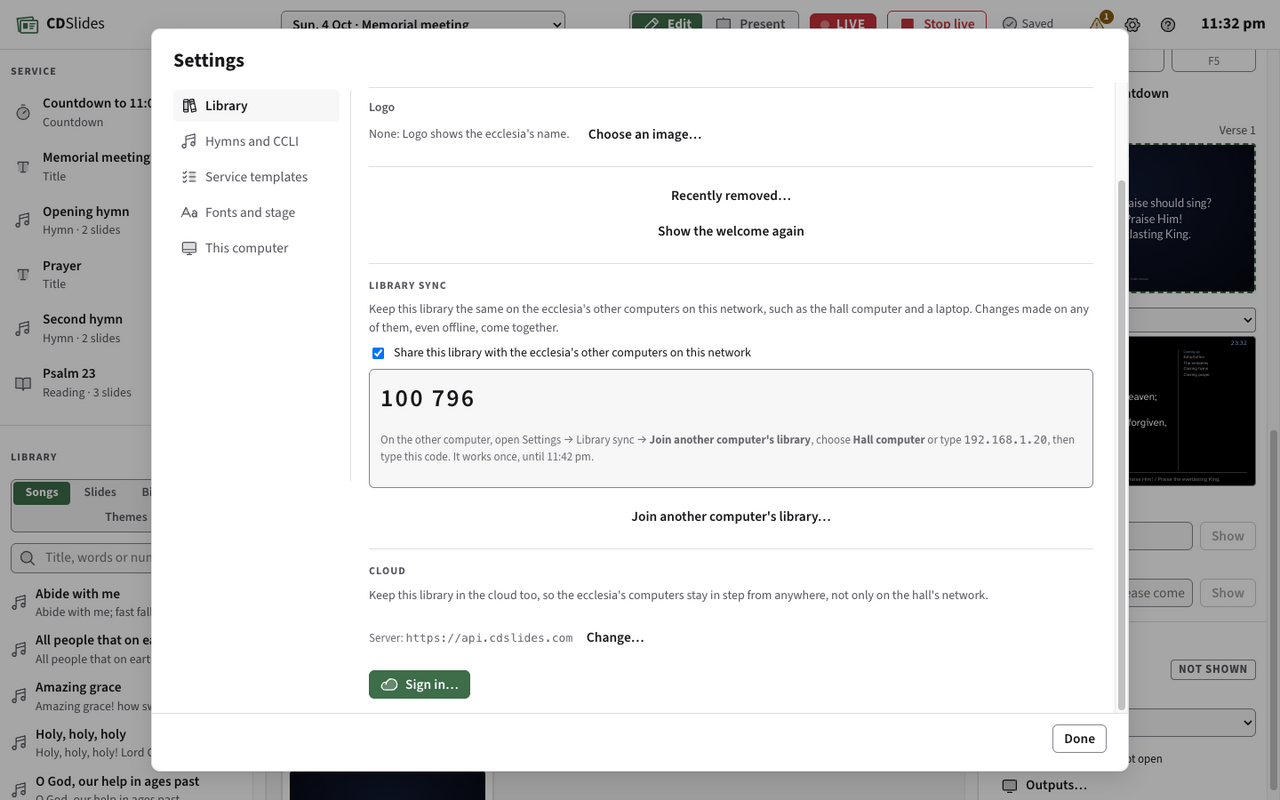
On the other computer:
- Settings → Library → Library sync → Join another computer's library… (or Join our ecclesia's library in the welcome).
- Choose the hall computer from the list (or type its address), type the code, and choose Join and copy the library.
The library is copied across; the other computer's own library stays, under Ecclesia library. From then on they keep in step whenever both are on the network. The top bar says Up to date, Syncing… or Offline.
Choose it to see what's syncing:
- the library on this network and in the cloud;
- the file moving now, with its progress;
- files on their way to this computer;
- files waiting to go to the cloud (and why, if one didn't);
- In the cloud: how many media files are there, by type (recordings, videos, pictures) with their sizes, and the shared Bibles.
The hall computer lists each computer it shares with, and Remove stops one.
Through the cloud
- Settings → Library → Cloud → Sign in… (Sign in with CDSlides… where CDRoster sign-in is offered too). Your browser opens the CDSlides sign-in page: sign in with your email (a link arrives) or a passkey, then confirm "Sign in to CDSlides on this computer".
- On the computer with the library, an admin chooses Put this library in the cloud.
- Members and invitations… invites people by email, as an admin, an editor or a viewer. Send the invitation code to them yourself.
- Each person signs in on their own computer, chooses Accept an invitation…, pastes the code, and joins the library.
Signing in doesn't connect a library by itself: Settings says "This library isn't in the cloud yet" until you put it there or join one. If you're already a member of a library in the cloud, Join a library from the cloud… brings it onto this computer as a separate library; the one open now stays as it is.
The library's name in the cloud is what members see when they join. An admin can change it: Rename… beside in the cloud as … in Settings. It needs a sign-in from the last ten minutes; if yours is older, CDSlides offers the cloud's page in your browser, where you sign in and rename it under Cloud ecclesiae. The library's own name on each computer stays as it is.
Signing in with CDRoster
If your ecclesia plans its meetings in CDRoster, people can sign in to CDSlides with their CDRoster account instead of an email link or passkey. An admin sets this up once; after that, anyone in your CDRoster organisation can sign in.
Setting it up (an admin, once)
You need a CDSlides sign-in of your own (email or passkey) for these steps, and to be an admin of your organisation in CDRoster.
- Put the library in the cloud. On the computer with the library: Settings → Library → Cloud → Sign in with CDSlides…, then Put this library in the cloud. (Skip this if Settings already says in the cloud as ….)
- Open the cloud's page. Settings → Planner → Open the cloud's page, or go to api.cdslides.com/auth in your browser and sign in with the same email.
- Connect CDRoster. On the cloud's page choose Planning connections. Pick your ecclesia, choose CDRoster, then Connect.
- Allow it in CDRoster. CDRoster opens and asks "Allow this CDSlides server to read (your organisation)'s meeting plans…?". Sign in to CDRoster if it asks, then choose Allow access. To let CDSlides send plan changes back (Send to CDRoster), allow that too when it's offered. You can reconnect later to change your mind; people signed in with CDRoster then sign in again before they can send.
- Check it took. The cloud's page says "Connected to (your organisation)." In CDRoster, your organisation's Integrations page now lists CDSlides, and in CDSlides, Settings → Planner says it's connected. Planned meetings start arriving as services.
The link always starts from CDSlides (step 3). CDRoster's Integrations page can't start it by itself.
Signing in
- Settings → Library → Cloud → Sign in with CDRoster…. Your browser opens CDRoster: sign in there.
- The browser says "You're signed in". Go back to CDSlides. It brings your ecclesia's library onto this computer (or reconnects the one already here) and starts syncing. Settings says "Signed in with CDRoster for this library".
Choose Cancel in CDSlides to stop waiting for the browser. Your role (admin, editor or viewer) comes from CDRoster, and a change there applies here within minutes.
Signing in with CDRoster is for using the library. Members and invitations, Register this computer and Rename… still need a CDSlides sign-in (email or passkey), even for an admin. Sign out of CDRoster stops this library syncing until you sign in again; the library stays on the computer, and changes made while signed out sync later.
If it doesn't work
| What you see | What it means |
|---|---|
| CDRoster says "(organisation)* isn't connected to this CDSlides server yet"* | The setup above hasn't been done for your organisation. Ask an admin to do steps 1–5. |
| CDSlides says no library has been put in the cloud yet | Step 1 hasn't been done. |
| CDSlides says your organisation isn't connected, or your access was removed | The connection was disconnected, or an admin removed you from the ecclesia in CDSlides. |
| CDSlides says there's already an account with this email | You've used CDSlides before with the same email. Choose Sign in with CDSlides first…, then Link CDRoster to your email. CDSlides never joins accounts on its own. |
| "Your sign-in with CDRoster has ended" | Sign in with CDRoster again. Changes made meanwhile are kept and sync. |
Roles:
| Role | Can |
|---|---|
| Admin | Everything, including people, computers and the ecclesia's settings |
| Editor | Change songs, services, slides and themes |
| Viewer | Look and present, not change (musicians, for example) |
The hall computer: an admin signs in on it once and chooses Register this computer. It then keeps syncing on its own, whoever signs in or out, and can be revoked by itself.
If a change can't be uploaded (for example after someone's role becomes Viewer), sync pauses and Settings says why. The change is kept on that computer, not lost.
Pictures, videos and fonts
Pictures, videos and audio move between the computers on the hall's network by themselves. Settings → This computer → Media on this computer chooses:
- This computer presents: keeps everything the next 14 days' services need, so it's ready offline. For the hall computer.
- This computer edits: fetches what the open service needs. Saves space on a laptop.
Hymn accompaniment and theme pictures are always kept. The Before the service check says if something isn't here yet, with Fetch now.
Through the cloud: files chosen for the cloud in Manage media (Library → Media) upload from a computer that has them. A computer that needs one, and can't get it from a computer on its own network within a couple of minutes, downloads it from the cloud. So the hall computer gets this Sunday's accompaniment even if the laptop it was added on is at home. Every file is checked before it's used. Only files chosen for the cloud go there.
Fonts added from Google Fonts reach every computer too.
Next
Guides describe CDSlides 0.1.7. Source at f65a007e.