User guide · CDSlides 0.1.7
Screens and the livestream
The projector
CDSlides can show:
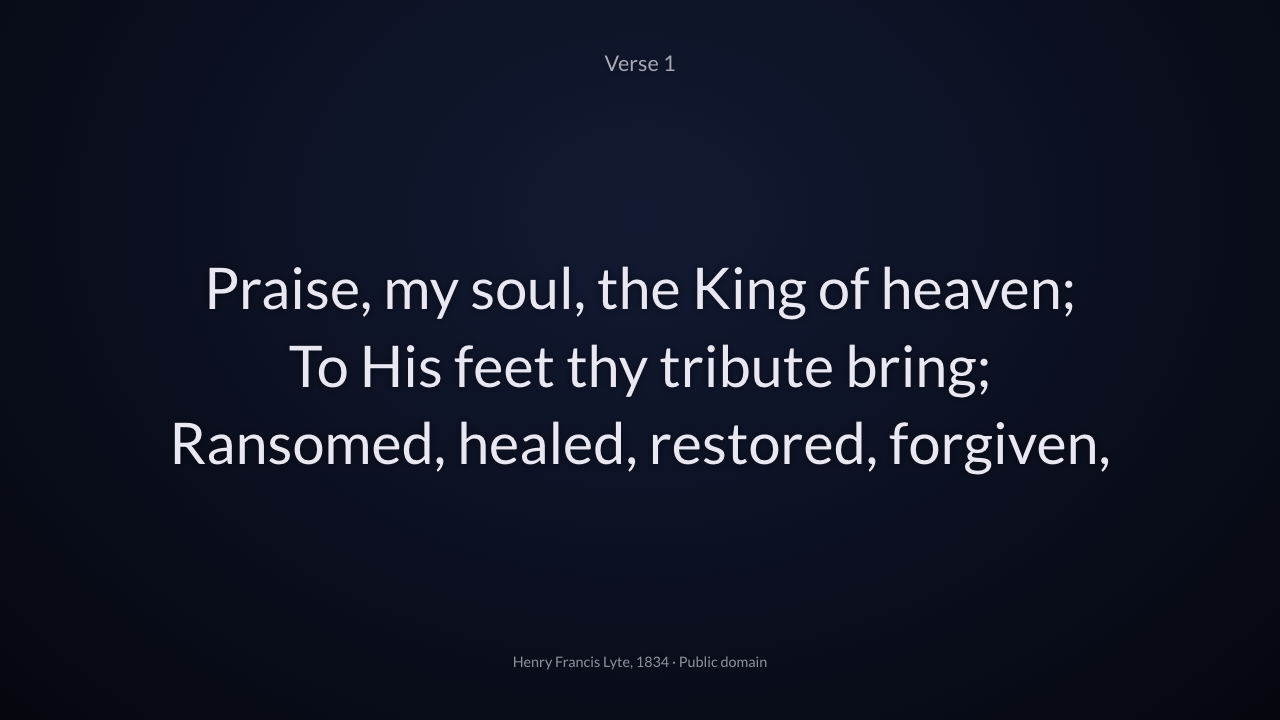
- Audience: the slides, for the projector or TV.
- Stage: a screen for the speaker or musicians.
- Stream (OBS): the words over the camera picture for a livestream.
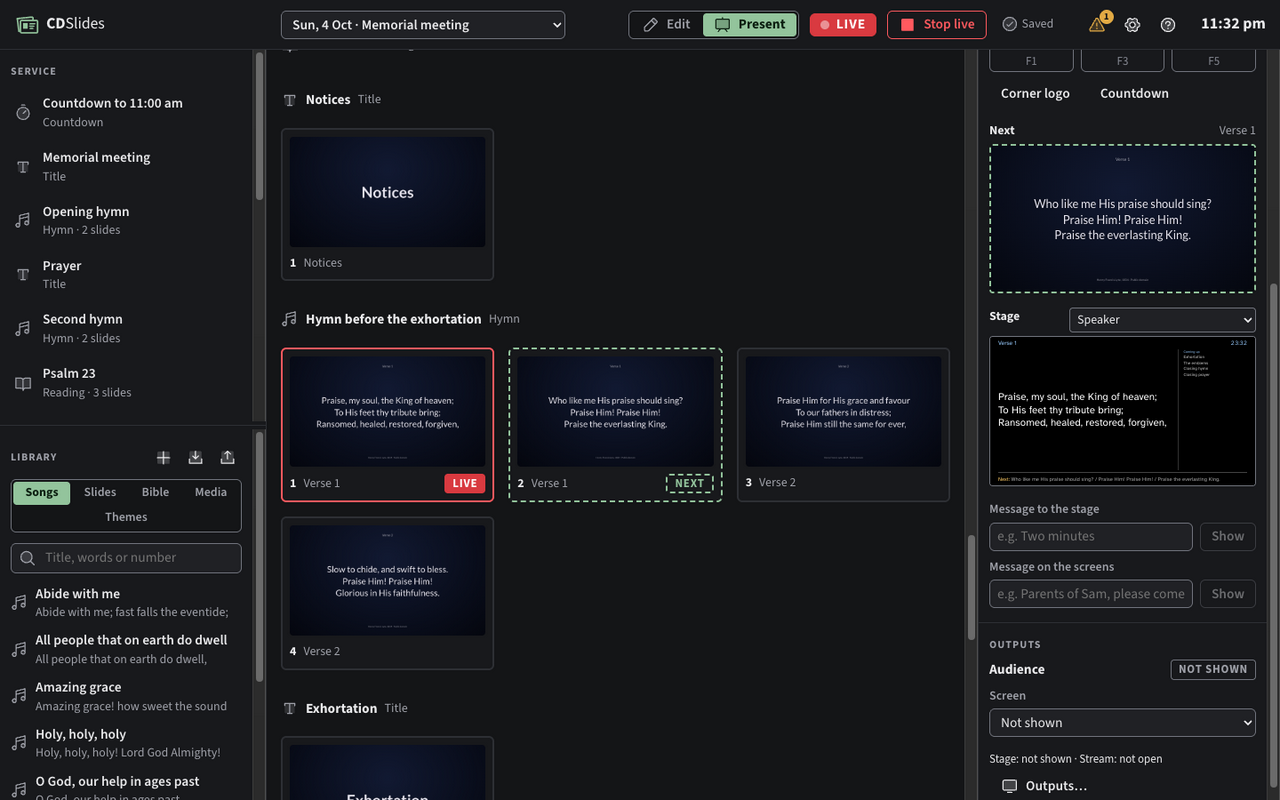
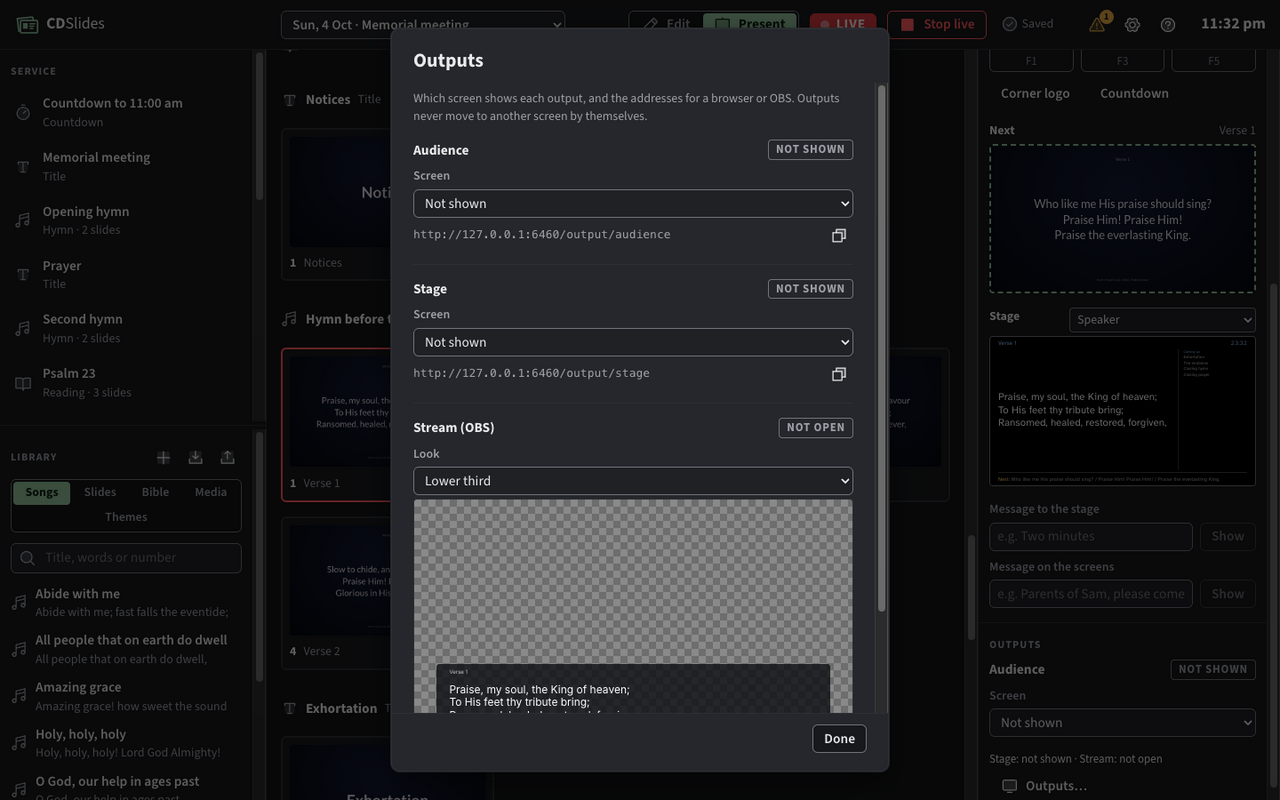
At the bottom of the right-hand column, Outputs has the screen for the Audience output, the one you need most. Outputs… opens all of them: the Stage screen, the Stream's look, and each output's address for a browser or OBS. Choose a screen for each; CDSlides remembers it for next time.
A screen that's unplugged shows Disconnected screen, and the output waits for it rather than moving to another screen: the slides never jump onto your laptop's own display by themselves. Plug it back in, or choose another screen.
Closing the laptop
If CDSlides runs on a laptop and you close its lid, the computer moves CDSlides onto the projector, on the same screen as the slides. CDSlides notices and asks:
- Hide the output: you can see CDSlides on the projector to work in it, and so can the audience. The output comes back by itself when you open the laptop, or choose Show it again under Outputs.
- Keep the slides in front: the audience sees the slides, not CDSlides. Keyboard shortcuts and clickers still work. Choose this if you work with the lid closed on purpose.
CDSlides only asks when the laptop's own screen closes. If the projector or another screen is unplugged, nothing is shown on any screen: its output just waits for it.
Stage screens
A stage screen shows the speaker or musicians what they need. Choose its layout in the live column:
- Speaker: the current and next slide, notes, the item's timer, what's coming up, and the clock.
- Musician: the words with chords, and which verse comes next.
- Simple: just the words, large.
- Automatic (Musician for songs): Musician for hymns, Speaker for everything else.
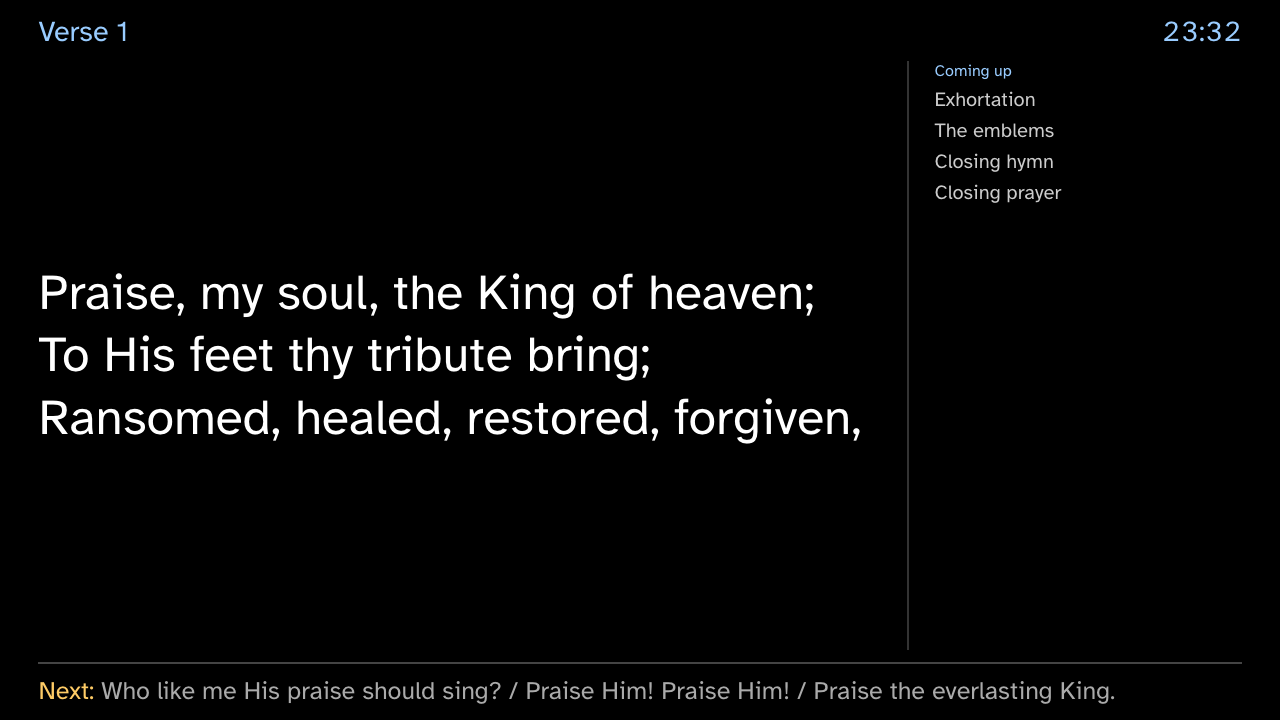
Your own layouts: Settings → Fonts and stage → Stage layouts makes a layout from one of these, with each part (clock, timer, current slide, notes and so on) placed where you want it. Choose it in the live column like the others.
Stage messages show over the stage screen (for example Two minutes) without the audience seeing them.
The livestream
The Stream (OBS) output is a web page for OBS or any streaming program: the words over your camera picture. Its look can be a lower third (words along the bottom), the full slide, or just the words. Copy its address from Outputs, and add it to OBS as a Browser source. Black and Logo are for the room, so the stream ignores them unless its address asks to follow them.
See Streaming with OBS for the step-by-step.
Sound
Settings → This computer → Sound chooses where sound comes out on this computer, for example the hall's sound desk on a USB audio interface rather than the laptop's own speakers:
- Service sound: hymn recordings and accompaniment, audio items, and the sound of videos on the audience screen.
- Previews: playing a file in Manage media. Choose headphones here to listen to a recording without the hall hearing it.
Test plays a short tone through the one chosen, so you can tell which is which. Each computer chooses its own. If the chosen one isn't plugged in, sound comes out of the usual speakers until it is, and the check before the service says so.
Screens on other devices
Settings → This computer → Network can share the outputs with other devices on your network (to view only): a TV with a browser, a second computer, a tablet on the lectern. Each output gets an address to open in a browser.
Next
Guides describe CDSlides 0.1.7. Source at f65a007e.