User guide · CDSlides 0.1.7
Slides, pictures and videos
Slides of your own
Library → Slides → New slides makes a set of slides (notices, a talk's
points, a welcome). Each slide is plain text: a heading line starting with
#, then the words. Format words with the toolbar: bold, italic, colour,
size, alignment.
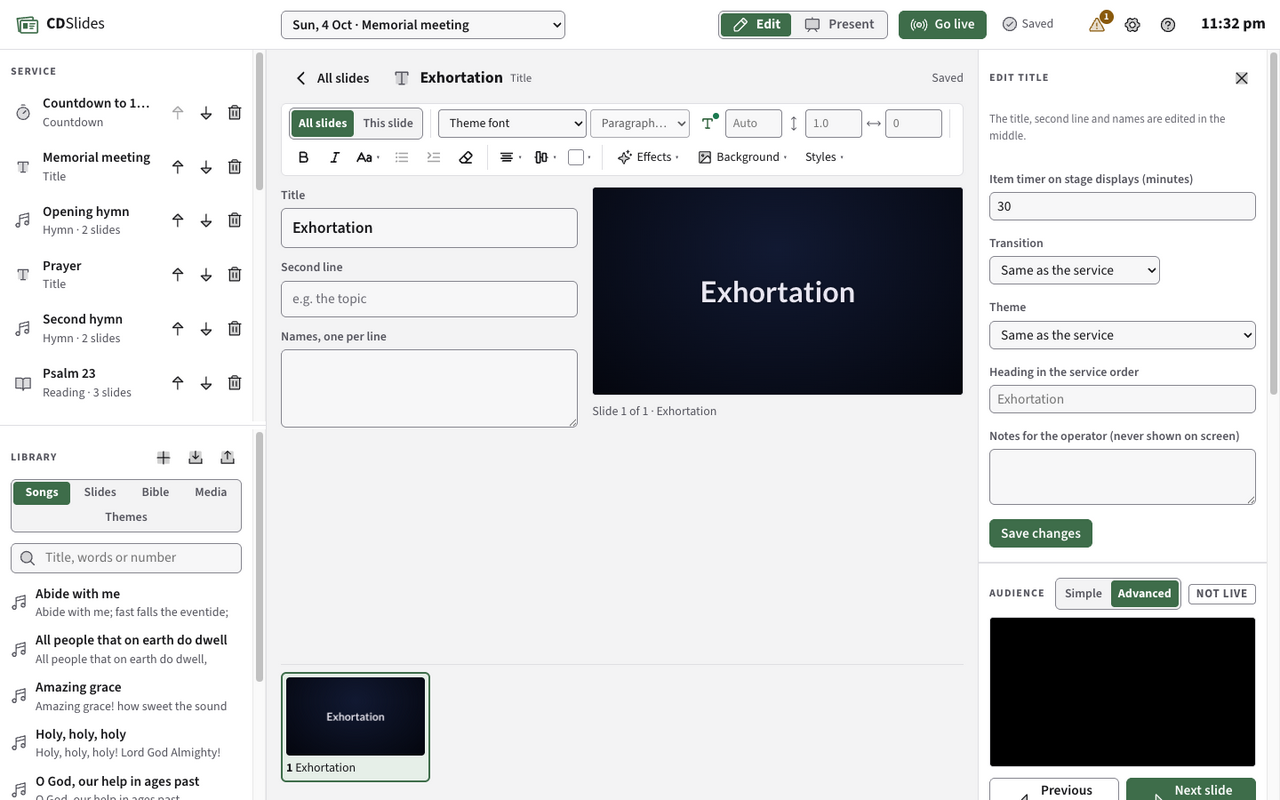
Add the set to the service with + beside it.
Designed slides
A slide can be laid out freely instead: text boxes, pictures and shapes placed anywhere on the slide. In the slide editor, choose Design this slide freely, then add and arrange things. Drag to move, use the handles to resize; things snap to the slide's edges and to each other (hold Alt to stop snapping). It fits any screen shape.
PowerPoint and PDF files
Import slides in the Slides panel takes a PowerPoint (.pptx) or PDF
file.
- PowerPoint comes in as slides you can edit, with each slide's text, pictures and layout. CDSlides shows what it found first. Slides with things it can't keep (charts, effects) can come in as pictures instead, if PowerPoint is installed on the computer.
- PDF files come in one picture per page.
Older .ppt and Keynote files need saving as .pptx first, from PowerPoint
or Keynote.
Pictures, videos and audio
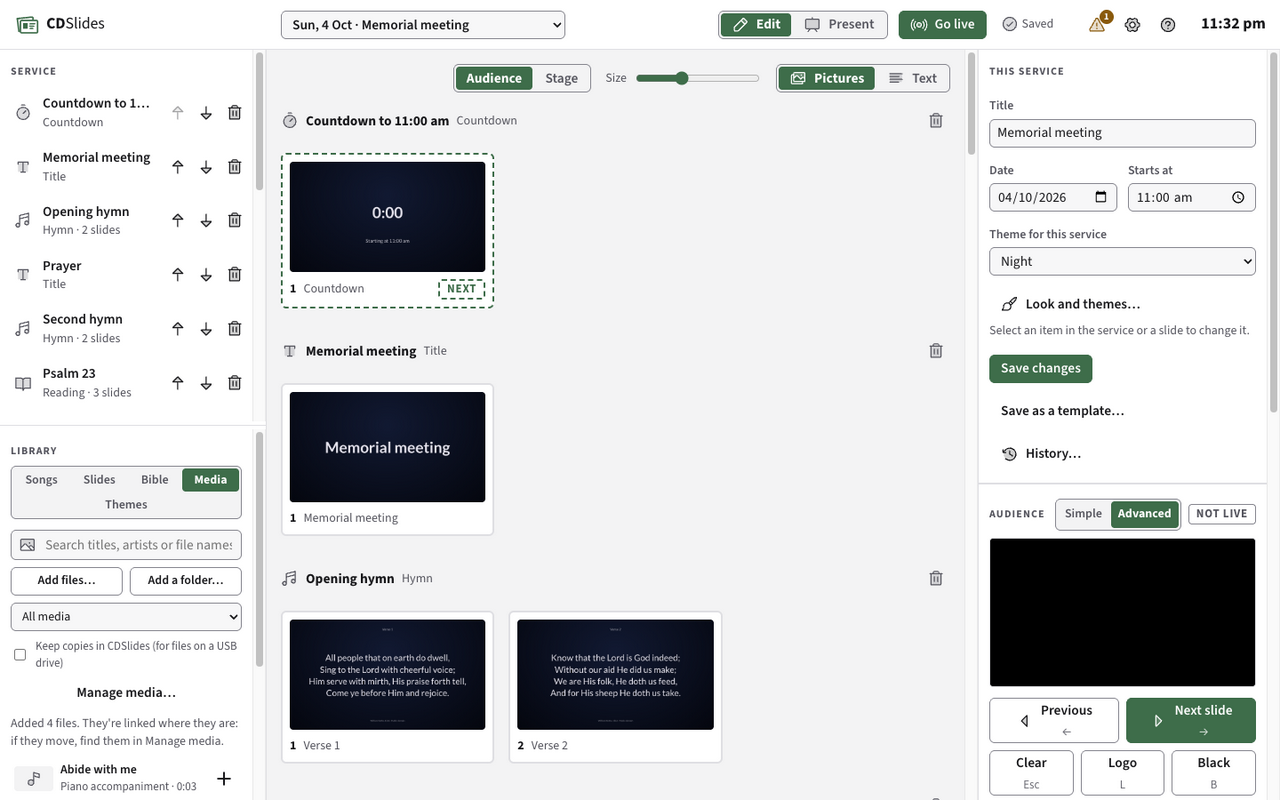
Library → Media holds pictures, videos, audio and PDFs. CDSlides links to each file where it is on your computer rather than copying it. Tick Keep copies in CDSlides before adding files from a USB drive, or anything that might move.
- Choose Add files…, or Add a folder… to add every picture, video, audio file and PDF in a folder (and the folders inside it). Other files are left out, and CDSlides says how many.
- Find a file by typing words from its title, artist or file name, in any order: hymn 1 finds "Hymn No. 1" (and not Hymn 10). Or show one kind at a time (All media, Pictures, Videos, Audio, PDFs).
- Drag a file onto the slides to put it there in the service, or choose + to put it at the end.
Recordings show the title written into the file (an MP3's title tag) rather than its file name, with the artist underneath.
A recording of a hymn belongs with the hymn: open the hymn and choose Add a track (see Songs and hymns).
Manage media
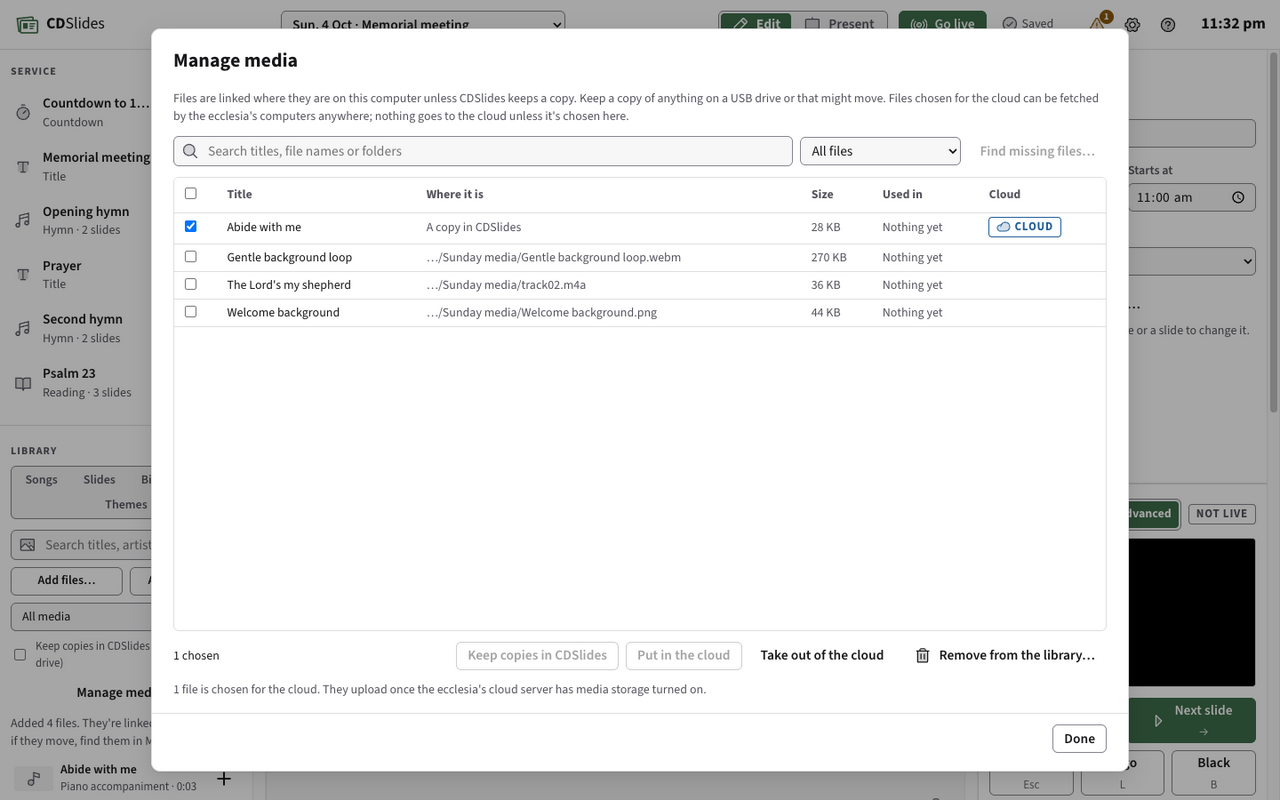
Manage media… lists every file: where it is on this computer, how long each recording or video is, its size, which services and songs use it, and whether it's in the cloud.
To hear a recording or watch a video, choose the play button beside its title. It plays in a small player below the list, through this computer's sound (so the hall hears it if that's where this computer's sound goes), never on the screens or the stream. Choose × to stop. Files that are missing or on another computer can't be played here.
Choose files, then:
-
Keep copies in CDSlides: copy linked files in, so they no longer depend on where the originals are.
-
Show in Finder (Windows: Show in Explorer): opens the folder the file is in, with it selected. For one file that's on this computer.
-
Put in the cloud or Take out of the cloud: files in the cloud can be fetched by the ecclesia's computers anywhere, such as accompaniment recorded at home that the hall computer needs. Nothing goes to the cloud unless you choose it here. The Cloud column says where each stands:
- Waiting to upload: it uploads in the background, from this computer or, if it isn't here, from one of the library's computers that has it.
- Uploading…, then In the cloud.
- Not uploaded: something went wrong; point at it to see why. It's tried again later.
- Chosen: the library isn't in the cloud yet, so it waits until it is.
Take out of the cloud stops other computers fetching it from there.
-
Remove from the library…: for files added by mistake. The files stay on your computer; CDSlides just forgets them. Files a service or song uses are kept (CDSlides says which). Recently removed (Settings → Library) brings them back for 30 days.
If a linked file is moved, renamed or edited, it shows as Missing, and the check before the service says so. Choose Find missing files… and pick the folder it's now in: CDSlides finds it by its contents, even under a new name.
- Videos play on the projector when their slide goes live. CDSlides converts a video that wouldn't play smoothly (it says so in the library).
- Audio plays beside the slides, for example music before the meeting.
- While a video or recording plays, its item in the middle shows play or pause, from the start and stop, with the time played and the time left; click along the bar to jump. The same controls are at the top of the live column.
A service item can also loop through pictures or slides, for before the meeting: choose how long each one shows.
Removing
To take an item out of a service, choose the bin beside it in the service list, or on its heading in the middle (Edit mode). The service's History… can bring it back.
Remove a set of slides with the bin beside it. It's kept for 30 days in Settings → Library → Recently removed.
Next
Guides describe CDSlides 0.1.7. Source at f65a007e.