User guide · CDSlides 0.1.7
Keyboard shortcuts
These work in Present mode.
| Key | What it does |
|---|---|
| Right arrow, Down arrow, Page Down, Space | Next slide |
| Left arrow, Up arrow, Page Up | Previous slide |
| B or . (full stop) | Black (most clickers' black-screen button) |
| L | Logo |
| Esc or F2 | Clear the slide |
| F1 | Clear the background |
| F3 | Clear props (corner logo and countdown) |
| F5 | Clear everything |
| U | Update live (show edits to the slide on screen) |
| 1 to 9 | Verse 1 to 9 of the live hymn |
| C | The chorus |
| G | The bridge |
These are the usual keys. Each computer can have its own.
Changing the keys
Open Settings (the gear in the top bar) → This computer → Keyboard shortcuts.
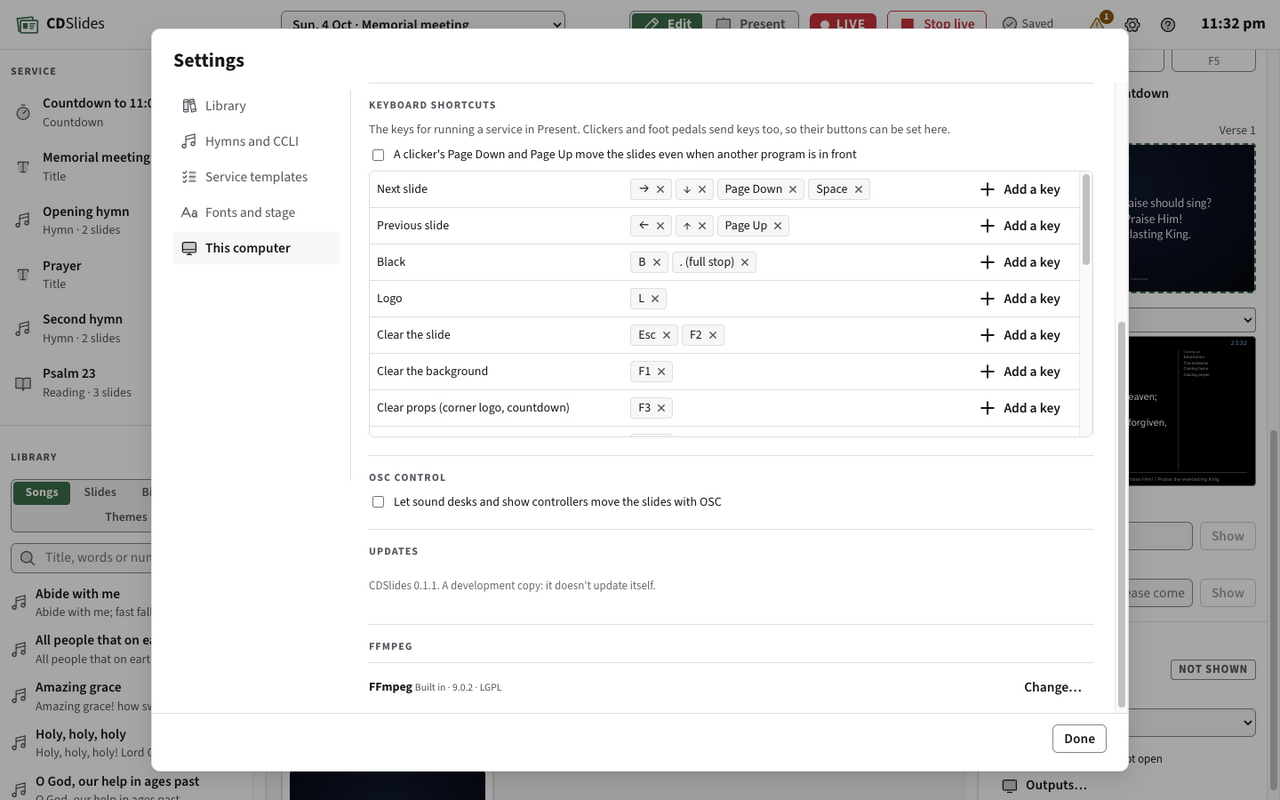
- Add a key, then press the key (or the clicker button) to use. Esc cancels.
- × on a key takes it off.
- Reset puts an action's keys back to the usual ones.
A key can do only one thing. If it's already used, CDSlides says what for; take it off there first.
When another program is in front
Shortcuts work when the CDSlides window is in front, so click on it first if you've been using another program.
A clicker can move the slides from any program: in Settings → This computer → Keyboard shortcuts, tick A clicker's Page Down and Page Up move the slides even when another program is in front. While it's on, Page Down and Page Up do nothing else on that computer, so leave it off on a computer used for other work during the service.
Guides describe CDSlides 0.1.7. Source at f65a007e.