User guide · CDSlides 0.1.7
Installing and setting up
Installing
Download CDSlides from cdslides.com.
On a Mac: open the .dmg file and drag CDSlides into Applications.
Choose the Apple silicon version for Macs from 2020 on (M1 and later), or
Intel for older ones (Apple menu → About This Mac says which).
On Windows: run the setup file. Windows may say "Windows protected your PC": choose More info, then Run anyway. It installs for you alone, and needs no administrator password.
CDSlides keeps itself up to date: when a new version has downloaded, the top bar shows Update ready. It installs when CDSlides quits, or straight away if you choose Restart and update. It never restarts by itself, so it won't interrupt a meeting.
The welcome
The first time CDSlides opens, it asks how you'd like to start.
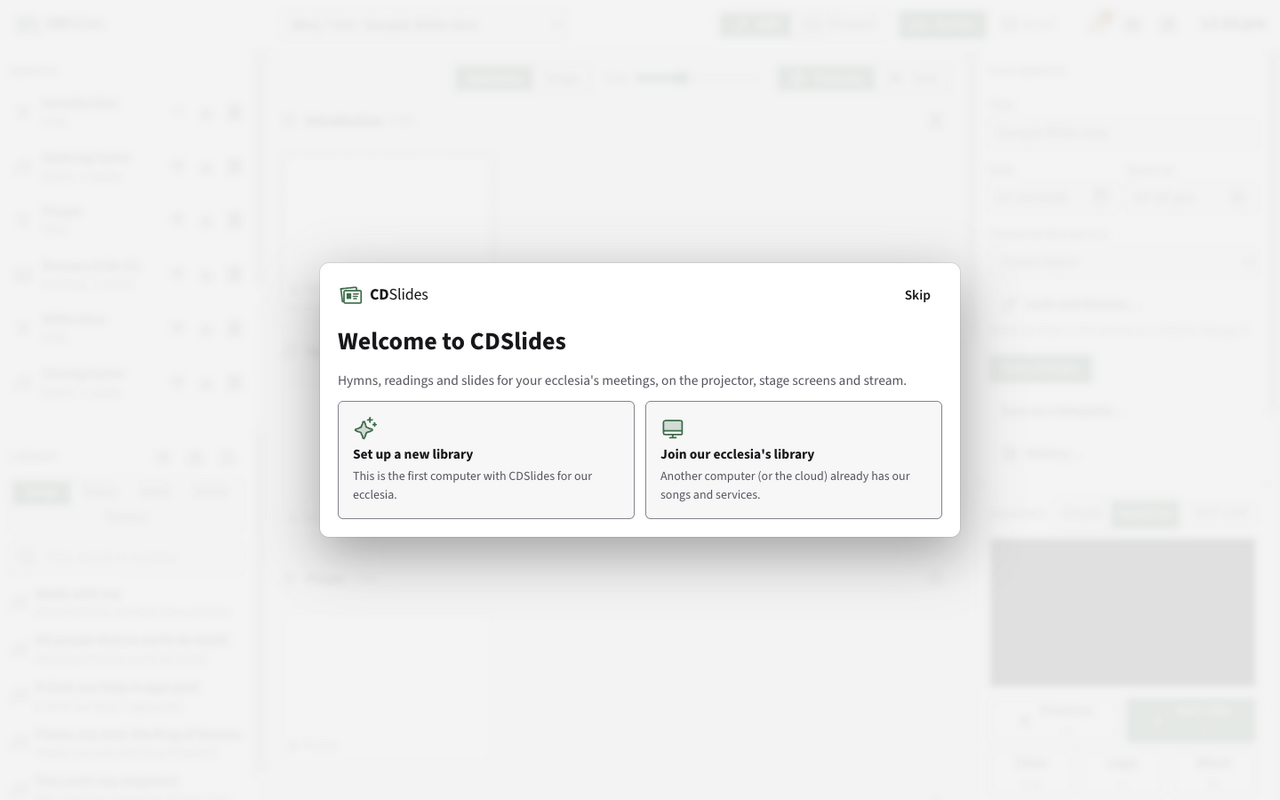
Set up a new library if this is the first computer with CDSlides for your ecclesia:
- Your ecclesia: its name (for example Riverwood Christadelphians), its time zone, and your CCLI licence number if you have one.
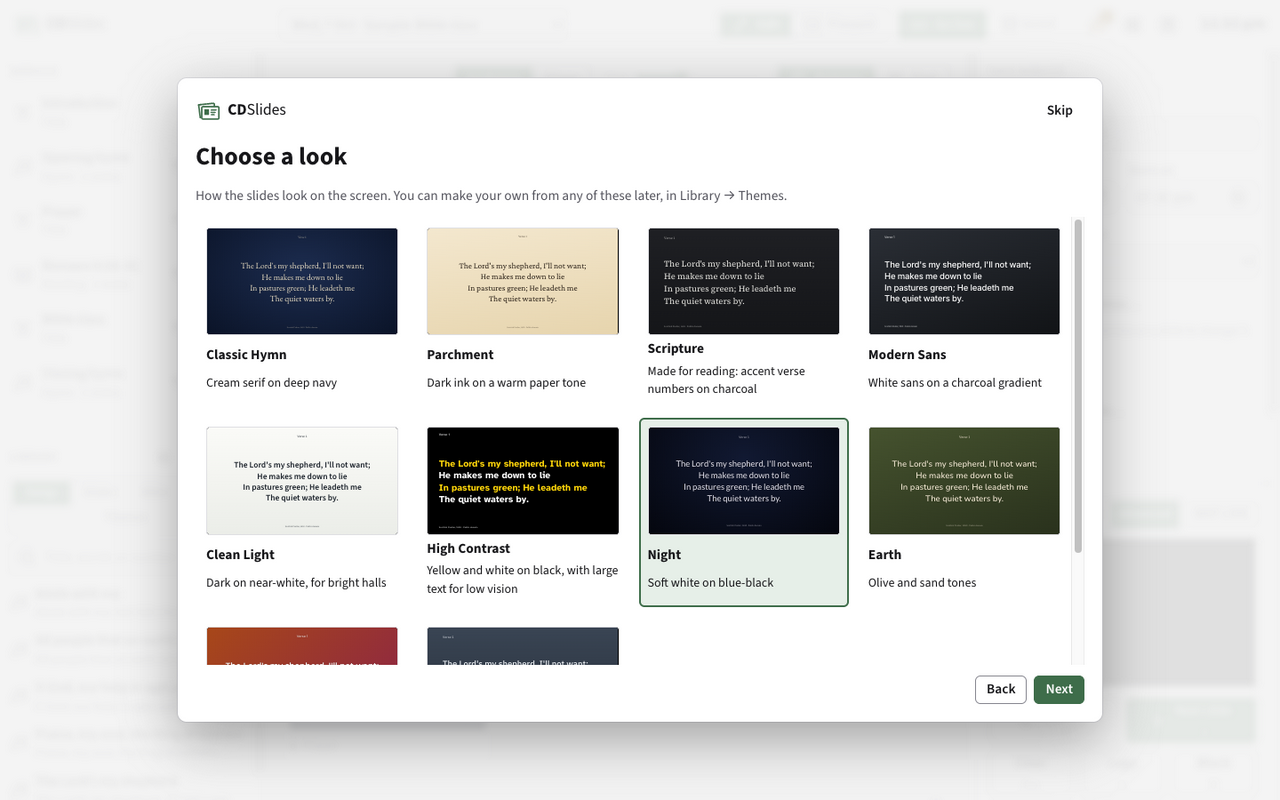
- Choose a look: how slides will look on the screen. Each theme is shown with a hymn verse. You can change it, or make your own, later.
- Bring in your songs: import a hymn book or your songs from another program (see Songs and hymns), or do it later.
- Done: keep the sample service to try things out, or remove it.
Join our ecclesia's library if another computer already has your songs and services, such as the hall computer:
- From a computer here: for a computer on the same network. On the other computer, open Settings → Library → Library sync → Add a computer; it shows a six-digit code to type here.
- From the cloud: sign in, then accept your invitation or join your ecclesia's library. See Several computers.
Everything in the welcome can be changed later in Settings (the cog in the top bar). Skip leaves things as they are.
Finding your way around
CDSlides has two modes, chosen in the top bar:
- Edit, for preparing: making services, editing songs and slides.
- Present, for the meeting: big buttons for the next slide, Black, Logo and messages.
The main window has three columns:
- Left: the service (its items in order) and the library below it (songs, slides, Bible, media and themes).
- Middle: the slides of the service. Choose an item to edit it, or a slide to show it.
- Right: what's live on the projector, and the outputs: which screen shows the slides (Outputs… for the rest).
The top bar also shows whether changes are saved, the Before the service check, how many screens or browsers are watching, Settings, and help.
Every change saves by itself: there's no Save button.
Next
Guides describe CDSlides 0.1.7. Source at f65a007e.